


Using plugins that are not well-optimized can negatively impact the speed of your WordPress site, resulting in sluggish performance that drives users away. Identifying the specific WordPress plugins that slow down your site can be challenging.
Despite our site loading in under a second, we actually have a range of plugins running in the background.
In this post, we’ll walk you through how to spot WordPress plugins that slow down your site. It will help you replace them with faster options that enhance WordPress performance.
Why Do Some WordPress Plugins Affect Website Speed?
WordPress plugins act like applications, adding new functions and features to your site; generally, to speed up WordPress website. Whether you need a contact form, image optimization, security enhancements, or WordPress speed optimization, there’s a plugin for it.
These WordPress plugins are typically written in PHP, just like WordPress itself. That means they rely on your server’s resources, including processing power, memory, and storage.
Each time someone accesses a page on your site, WordPress loads its core files along with all the active plugins before displaying the page. If a plugin is inefficient, it can delay the process, leading to a slower website loading time.
Visitors have little patience for slow-loading sites. Research shows that even a one-second delay can result in a 7% drop in conversions, an 11% decrease in page views, and a 16% dip in customer satisfaction.
The issue lies not in the number of plugins you use, but in their overall build quality. Your site can smoothly operate with multiple well-developed WordPress plugins, yet just one poorly designed plugin can negatively impact WordPress speed optimization.
Inefficient PHP scripts can overconsume server resources, dragging down your WordPress performance. Some plugins tend to over-query your WordPress database unnecessarily, which slows website loading speed.
Others pull files like scripts, fonts, or stylesheets from sluggish external servers, causing delays in the website loading time. Feature-rich plugins you don’t actually use also slow down website loading time simply by being more resource-heavy than necessary.
Identifying which plugins are contributing to slowdowns is a crucial step in enhancing your website’s loading time and speed optimization. Maybe you have downloaded multiple WordPress map plugins to optimize your local business. Once identified, you can swap them out for more efficient alternatives that offer the same functionality with better performance.
That said, there are certain essential plugins that do heavy lifting like image compression, link checking, or scanning for malware. Instead of removing them, consider setting these activities to run during low-traffic hours to minimize their impact.
Before diving into this guide regarding WordPress plugins that slow down your site, ensure all your plugins are updated. Plugin developers frequently roll out updates that improve WordPress performance and fix issues.
There’s no magic button to generate a list of your slowest plugins, so you’ll need to dig down. Here are a few methods to help identify WordPress plugins that slow down your site:
- Uncovering Plugins With Slow Database Requests
- Identifying Plugins That Load Resources Slowly
- Individually Testing Each Plugin’s Impact on Speed
- Extra Tip: Boosting Mobile Performance with Google Lighthouse
- Hiring a Site Speed Optimization Expert
- Selecting Higher-Quality WordPress Plugins
Identifying Plugins Causing Slow Database Queries
To detect performance bottlenecks caused by slow database queries on your WordPress site, a query monitoring tool can be incredibly helpful. It works by keeping track of the server requests your site generates.
One powerful tool for this is the free Query Monitor plugin. This plugin helps spot performance issues and presents detailed reports so you can determine which plugins may be contributing to your site’s slowness. At WPBeginner, we regularly rely on it to enhance our page loading speed.
Start by installing and activating the Query Monitor plugin. If you’re unsure how to do this, you can refer to our step-by-step tutorial on installing WordPress plugins.
After activation, you’ll notice the plugin adds monitoring options to the WordPress admin bar.
Next, go to the page you want to analyze on the front end of your website. Hover your cursor over the Query Monitor section in the admin bar, and a dropdown menu will appear.

From that menu, choose ‘Database Queries’. This action will open up various tools at the bottom of your screen.
Then, click on ‘Queries by Component’. A table will show you the plugins and components making queries. The ‘Select’ column lists how many queries each plugin performs, while the ‘Time’ column displays how long those queries took, measured in seconds.
You can sort these columns by clicking their headers. For instance, selecting the Time header will organize the list by duration, and clicking it again will place the slowest plugins at the top.

As a rule of thumb, if a plugin is responsible for more than 20-50 queries or if its queries take longer than half a second to a full second, it might be a cause for concern. Still, these are just benchmarks that enhance WordPress performance, which is about balancing usability with speed.
You can then disable the problematic plugins temporarily. Now, check whether your WordPress speed optimization improves. If performance gets better, you might want to contact the plugin developer or look for an alternative solution.
Identifying Plugins That Slow Down Resource Loading
When someone accesses your site, their browser must retrieve various files necessary to render the page. These include images, scripts, and stylesheets, and plugins may request some.
These files could either be hosted on your server or fetched from third-party sources. Each separate key features adds a bit more time to the loading sequence.
Analyzing with the Network Tab
To evaluate how long these resources take to load, visit any page on your site and open your browser’s developer tools. In Chrome, go to View> Developer> Inspect, or right-click anywhere on the page and choose ‘Inspect’.
Then click the ‘Network’ tab and refresh the page. As the page loads, a list of all required resources, both internal and external, will be displayed.
You can use the ‘3rd-party requests’ filter to see only external ones.
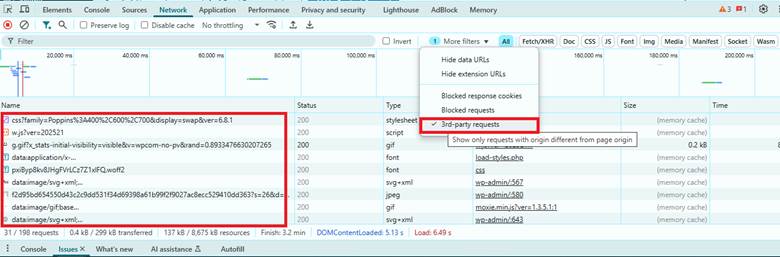
The ‘Time’ column reflects the duration it takes each item to load. Clicking this header sorts the entries, and clicking it again places the slowest at the top.
Any file taking longer than 500 milliseconds or over a second could be flagged for further review, though this is just a general benchmark.
The Initiator column might help identify whether a plugin is calling the file, but it’s not always definitive.
Using the Coverage Tool
The Coverage tool is helpful for determining which plugin files are being loaded from your server, but it’s hidden by default.
To enable it, click the three-dot icon in the top-right corner of the DevTools pane, go to More tools » Coverage.
This opens a list showing URLs for the resources currently in use.
Enter/plugins/ in the URL filter bar to filter specifically for plugin-generated files. The plugin’s name usually appears in the path, making it easier to trace.
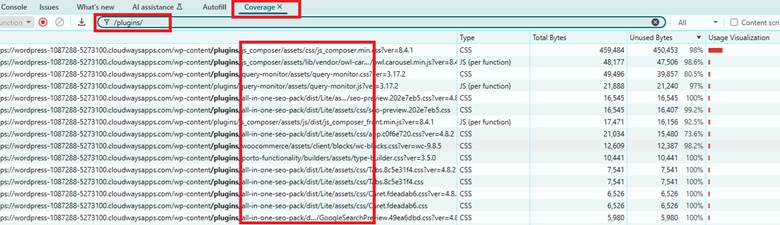
You can then reorganize the list by URL to group files by plugin, or sort by Total Bytes or Usage to identify plugins with bulky file loads.
Getting a Professional Website Speed Optimization Service
Recognizing plugins that hinder your website’s loading time can be quite overwhelming, especially if you don’t have a technical background.
Why not let specialists handle it with the website speed optimization service?

Experienced professionals of WPExperts will create a staging version of your site, allowing them to run comprehensive tests without affecting your live website’s performance. They’ll identify WordPress performance issues using insights from the Google Lighthouse report.
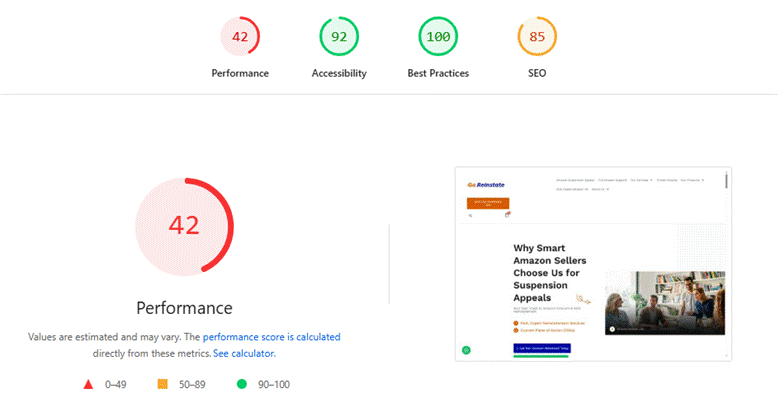
Following this, they will:
- Update your plugins
- Evaluate and fine-tune your plugin usage
- Boost server performance
- Optimize images
- Apply a variety of other enhancements
Manually Checking the Speed of Individual WordPress Plugins
One of the most straightforward and cost-free approaches to evaluate your plugins is by turning them off one at a time while observing your site’s loading performance. This technique doesn’t involve installing additional tools, but it does require more manual work and time compared to other strategies.
Begin by conducting a speed analysis of your website. The key figure to focus on is the time it takes for the page to fully load. In Pingdom’s test output, this is typically labeled as ‘Load time’.
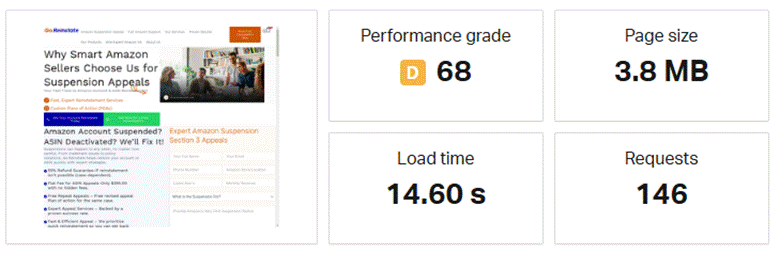
Proceed by disabling the first plugin and running the test once more. If there’s a noticeable increase in speed, you’ve likely found a plugin that’s affecting your site’s performance.
For the most reliable results, it’s recommended to perform each speed test three times and calculate the average. This accounts for possible internet variability.
Once done, reactivate that plugin and move on to disable the next one, repeating the test cycle.
Another variation is to start by disabling all plugins, then enabling them one after the other. Begin with a baseline speed test with no plugins active, and follow up with additional tests after each reactivation.
Although this approach requires considerable time, it can effectively pinpoint the WordPress plugins that slow down your site.
Selecting Faster WordPress Plugins
If you’ve just realized that certain plugins are dragging down your site’s speed, you’re probably asking how to find better alternatives.
Here are a few tips to help you select plugins that meet your needs. You don’t need to compromise website loading time and WordPress performance!
- Start by writing down the key features you need from the plugin. This could include the primary functions of the slow plugin you’re replacing, along with any additional functionalities you wish it had, or features you didn’t actually need.
- From there, head to the WordPress Plugin Directory and search for free plugins that align with your needs.
- Use the search bar to look up the main function, and review plugins with high install counts, solid user reviews, and recent WordPress compatibility.
Still, sorting through so many plugins can be time-consuming for ascertaining WordPress performance. For example, you have many alternatives for an online appointment booking plugin. You can go for a relatively lesser-known plugin like Bookify instead of Gravity Forms or Contact Form 7.

Once you’ve selected a plugin, test it for the website loading speed. Run a speed check before and after installation to make sure it doesn’t negatively impact your WordPress speed optimization.
Final Words
It’s not really about whether your WordPress site uses 5 plugins or 50. What truly matters is getting rid of those plugins that slow down your site. If WordPress performance is going down or you are unable to speed up WordPress website, we’ve already walked you through how to track down those culprits and handle them effectively.