


Regardless of whether your WordPress website is used to sell goods or services, run a blog, or simply showcase your real estate’s beauty, the only way to determine whether it’s making a difference is to examine the data.
Are you curious about the number of visitors to your website throughout the past month? Or what initially compelled visitors to your website? All of this and more can be seen in Google Analytics.
Adding Google Analytics to your WordPress website gives you access to real-time data on metrics, such as traffic sources, user behavior, and demographics, that will help you better understand your audience and their habits.
We’ll walk you through the process of how to add Google Analytics (GA4) to a WordPress website here.
How to Add Google Analytics to a WordPress Site
You must create a free Google Analytics account before we can begin. After configuring a Google Analytics property, you can install Google Analytics (GA4) to your WordPress site in two ways.
- How to add Google Analytics to a website with a plugin
- How to manually add Google Analytics to a WordPress site
How to Integrate GA4 to a Website with a Plugin
Using a WordPress plugin is the simplest approach to integrate Google Analytics into your WordPress website. There are various well-known options available, including Analytify, MonsterInsights, ExactMetrics, and Google Site Kit.
We’ll use Google Site Kit since it’s the official Google Analytics plugin for WordPress. It is free and offers trustworthy data from several Google products. Also, it requires no further human work on your part other than obtaining the required website rights.
- Log in to WordPress Admin Dashboard.
- Navigate to Plugins > Add New.
- Search for Google Site Kit
- Click Install Now, then Activate.
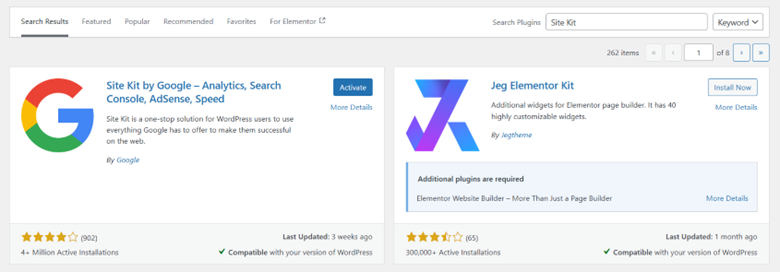
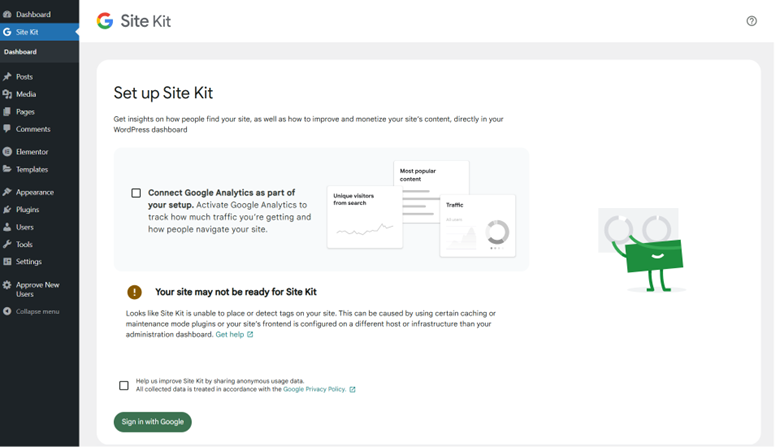
After activation, you will see the plugin in your WordPress dashboard. From your WordPress dashboard’s sidebar, click ‘Site Kit’ to set up the plugin.
Click “Connect Google Analytics as the setup process, and then click “Sign in with Google’.
Pros
- Easy setup
- No coding required
- Real-time stats in the WordPress dashboard
Cons
Some advanced features may require a paid version.
- Finish the sign-in process by verifying your website’s ownership and providing Site Kit and Google the needed access, including your Search Console’s access.
- Click Next.

- As soon as Site Kit connects to Google Analytics, the account details are displayed in the linked Google Analytics account. If all appears to be in order, select ‘Complete setup’.
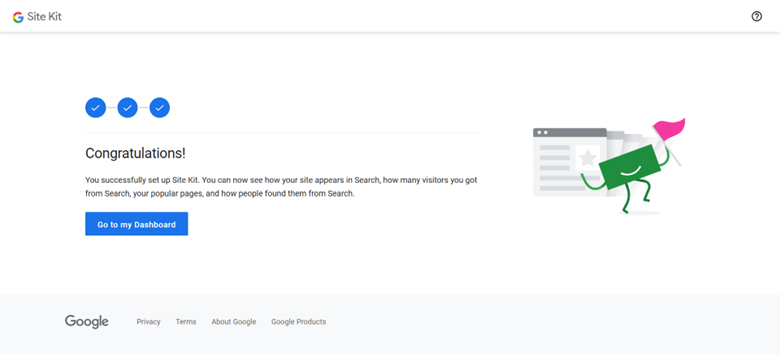
That’s all with regards to how to set up Google Analytics via plugin. The data on your website can now be accessed straight from the WordPress backend.
How to Install Google Analytics (GA4) Manually
You can also manually set up Google Analytics if you have the technical know-how and would rather not install GA4 through a plugin. You must install your Google Analytics tracking code on WordPress to accomplish this.
Let’s first briefly discuss some of the reasons you may not wish to adopt this route:
- It can take a lot of time and effort to set up.
- If the code is not installed correctly, you risk receiving incorrect data.
- WordPress does not allow you to track site data directly; instead, you must use your Google Analytics account.
- A theme change can easily erase the generated code, requiring you to reapply it.
- You won’t be able to use plugins’ sophisticated features.
Let’s go on if you have not got scared yet.
Steps to Install Google Analytics WordPress Manually
- Make a backup of your WordPress website. Before making changes to the theme of your website, this step is optional but strongly advised because any errors could crash your site.
- Visit Google’s analytics website.
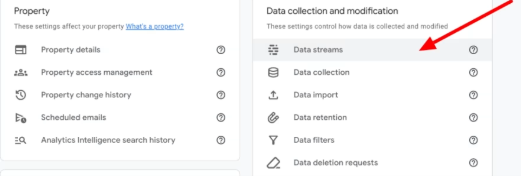
- Go to the sidebar and select Admin.
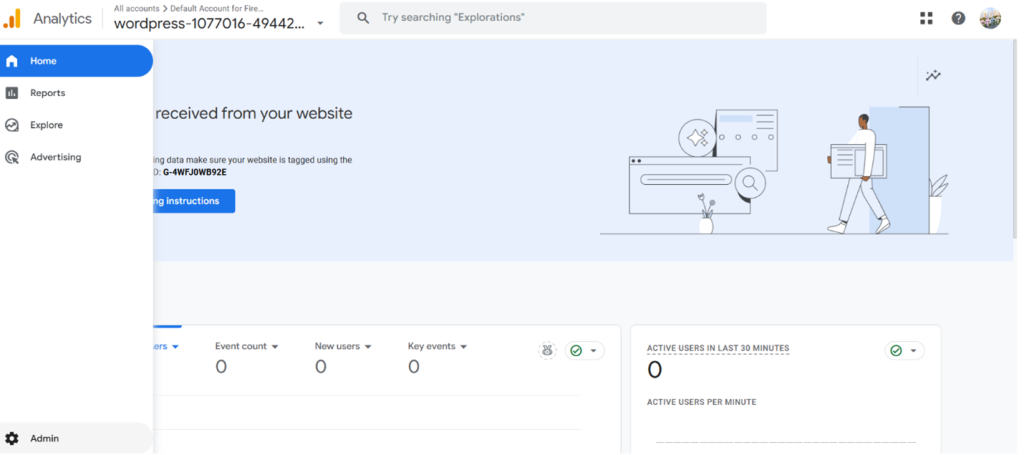
In the ‘Data collection and modification’ widget, select Data streams.
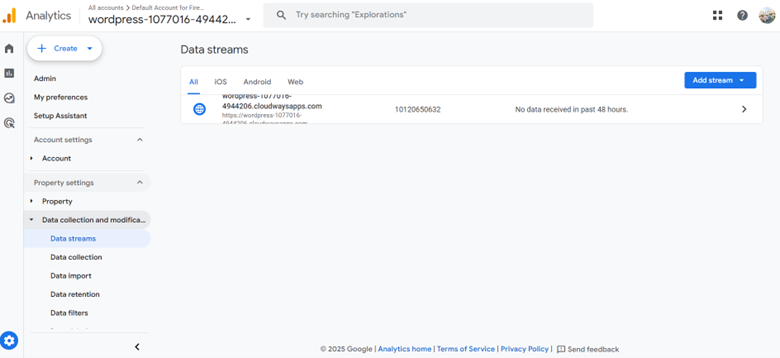
Select your preferred data stream.
Now select ‘View tag instructions’
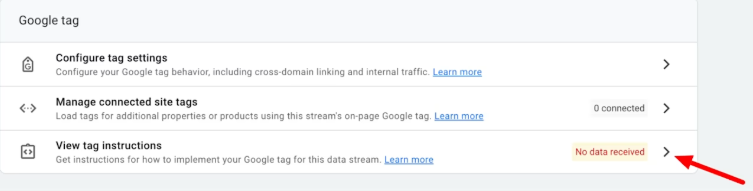
Select the ‘Install manually’ tab to show your tracking code.

Select the ‘Copy’ icon at the top right, shown above in the script box.
So, you have the ‘Google Analytics tracking code.’ Now you have two options to add it to your Google Analytics WordPress site:
- How to Install Google Analytics (GA4) in the WordPress website’s header.php file
- How to Install Google Analytics (GA4) in WordPress website’s functions.php file
How to Integrate GA4 Tracking Code in Website’s header.php File
- Go to WordPress dashboard.
- Click Appearance in the sidebar, and click ‘Theme File Editor’

- Click ‘I understand’ when you get the warning dialog box

- From the Theme Files Editor section, select Theme Header (header.php).

- Paste your ‘Google Analytics code’ that you copied above the closing head tag: </head>.

- Select Update File.
Now you are all set.
How to Integrate GA4 Tracking Code in Website’s functions.php File
It is advisable to install a child theme before you add Google Analytics (GA4) code to your header.php file. When you update the parent theme for your WordPress website, this will help maintain your current appearance.
You may activate your code when you’ve completed that.
- Go to WordPress dashboard.
- Select Appearance in the sidebar and select ‘Theme File Editor.’
- Via accessing ‘Theme Files’ sidebar, select Theme Functions (functions.php).

- Paste your GA4 code copied previously in the text-box before the closing </script> tag.
- Select Update File.
Why You Should Install Google Analytics 4 (GA4)
Why GA4 Is Essential for WordPress Users
GA4 is not just an update; it’s a complete overhaul. If you’re still using Universal Analytics (UA), you need to migrate before UA stops processing data.
Here’s why you should set up Google Analytics WordPress:
- Event-Based Tracking: GA4 records all interactions (page views, clicks, scrolls) as events, offering deeper insights.
- Cross-Platform Tracking: Easily track users across your website and mobile app.
- Privacy-Focused Data Collection: GA4 aligns with GDPR and CCPA, reducing reliance on cookies.
- Predictive Analytics: AI-powered insights forecast user behavior and purchasing trends.
- Enhanced Reporting: Customizable reports help analyze user journeys effectively.
Last Word
Installing GA4 in WordPress marks your first step toward data-driven website optimization. Choose the installation method that matches your technical expertise and business needs. Installation of Google Analytics ensures regular monitoring and maintenance ensure continuous accurate data collection for informed decision-making.
FAQs
How Can I Access GA4 to Integrate GA4?
Create a Google account and a Google Analytics account to gain access to GA4. Then, set up Google Analytics by following its onboarding instructions.
Use GTM or a GA4 integration for the implementation of GA4 on a website. Alternatively, manually include a little code on your web pages.
What are the best practices to setup Google Analytics?
As per Google, users should add no more than three data streams to a GA4 property, i.e., a website, an iOS app, and an Android app.
Depending on your data measurement goals, setting up numerous GA4 assets might be useful if your brand has multiple websites or apps.
What is the cost of installing Google Analytics (GA4) in WordPress?
Since GA4 is a free program, there is no expense associated with setting it up. However, if your GA4 setup incorporates integrations with premium third-party products, you will have to pay for them.