
Most articles treat cache plugins for WordPress like interchangeable speed boosters. That assumption is wrong. A WordPress cache is not a cosmetic add-on. It sits between your server and your visitor and decides whether a page loads in 300ms or three seconds.
The fastest plugin on paper can slow your site down if it fights your hosting stack. The best plugin to speed up a WordPress site depends on how your server handles PHP, how your theme loads JavaScript, and whether you run WooCommerce. Speed is a system problem, not a plugin problem.
This blog ranks the best cache plugins for WordPress using real performance logic. Hosting compatibility, Core Web Vitals impact, etc.
If your goal is a plugin to speed up a WordPress site without breaking layouts, carts, or checkouts, you need to understand what caching actually does first.
What a WordPress Cache Plugin Actually Does
A WordPress cache reduces the amount of work your server does for every visitor. Instead of running PHP, querying the database, and building a page from scratch, the cache serves a ready-made version of the page.
That is the core idea. Everything else is an implementation detail.
Page Caching
Page caching stores a fully rendered HTML version of a page and serves it directly to visitors.
- Biggest impact on load time
- Reduces server CPU and database usage
- Core feature of all serious cache plugins for WordPress
Plugins like WP Fastest Cache, WP Rocket, and WP Super Cache rely heavily on this layer.
Browser Caching
Browser caching tells the visitor’s browser to store static assets locally.
- CSS, JavaScript, images
- Reduces repeat load times
- Improves perceived speed, not first load
This is standard and low risk. Almost every plugin to speed up a WordPress site enables this.
Object and Database Caching
Object caching stores database query results in memory.
- Useful on large or dynamic sites
- Requires proper server support
- Low impact on small blogs
This is where plugins like W3 Total Cache add complexity. Used incorrectly, this layer causes more harm than benefit.
Server-Level Cache vs Plugin Cache
This is where most guides fail.
- Server-level cache runs before WordPress loads
- Plugin cache runs inside WordPress
If your host already provides full-page caching, adding another page cache plugin can create double caching. That leads to stale content, broken logins, and inconsistent behavior.
JavaScript and CSS Optimization Is Not Caching
Minification, deferring scripts, and critical CSS improve rendering. They do not cache pages.
This matters because many lists falsely rank optimization tools as cache plugins. Autoptimize, for example, is not a cache plugin. It complements one.
WooCommerce Changes the Rules
A store cannot cache everything.
- Cart pages must stay dynamic
- Checkout pages must stay uncached
- Logged-in users behave differently
This is why choosing the best WooCommerce cache plugin is harder than picking a blog cache. Plugins that ignore this will break pricing, carts, or sessions.
Do You Even Need a Cache Plugin?
Not every WordPress site benefits equally from a cache plugin. Adding the wrong tool can create conflicts, slow your best plugin to speed up WordPress site, or even break WooCommerce functionality.
Understanding when you truly need caching is the first step to meaningful speed gains.
Managed Hosting Already Handles Caching
Many managed WordPress hosts provide server-level caching out of the box. If your host uses NGINX full-page cache, LiteSpeed cache, or Varnish, a plugin may be redundant. Installing a plugin like WP Fastest Cache on top of this can create double caching, leading to stale pages or login issues.
- You need a plugin only if your host does not provide reliable caching
- Or if you want finer control over caching layers and Core Web Vitals
High-Traffic Blogs and Dynamic Sites
Sites with heavy traffic, dynamic content, or multiple contributors benefit from a cache plugin. Without caching, every request triggers database queries, PHP execution, and asset compilation, which increases load times and server stress.
- Best plugin to speed up WordPress site for high-traffic blogs: WP Rocket, FlyingPress
- Dynamic sites with logged-in users require object caching and careful page cache exclusions
When You Might Skip a Cache WordPress Plugin
- Small, low-traffic sites on managed hosting
- Sites already using server-level caching
- Sites where every millisecond of manual optimization has been applied
Installing a plugin blindly is worse than installing none. The goal is speed with stability, not just a “cache installed” badge.
How We Evaluated the Best Cache Plugins for WordPress 2026
Ranking the top cache plugins for WordPress is not about counting features or marketing claims. It’s about measurable speed improvements, reliability, and compatibility with real-world WordPress setups.
Our evaluation focuses on actionable outcomes.
Key Evaluation Criteria
- Caching Layer Type
- Page cache, object cache, and browser cache impact speed differently.
- A plugin like WP Fastest Cache excels at page caching for small to medium sites, while W3 Total Cache adds advanced object and database caching for dynamic setups.
- Hosting Compatibility
- Some plugins rely on server architecture. LiteSpeed Cache only works on LiteSpeed servers, while WP Rocket works universally.
- Correct pairing of host and plugin is critical for achieving the best plugin to speed up WordPress site results.
- Core Web Vitals (CWV) Impact
- LCP, CLS, and INP are prioritized.
- Plugins that handle CSS/JS minification, lazy loading, and preload strategies improve CWV scores directly.
- WooCommerce Safety
- Logged-in users and cart pages must remain dynamic.
- Only properly configured plugins like WP Rocket and FlyingPress are safe for WooCommerce.
- Automation vs Manual Control
- Some plugins are “set-and-forget” (WP Rocket), others require detailed setup (W3 Total Cache).
- Beginners benefit from simplicity; advanced users may prefer granular control.
- Performance Risk Profile
- Some plugins cause conflicts with themes or page builders.
- We rank plugins by stability and risk of breaking a site.
- Plugin Conflicts and Stability
- Ensuring compatibility with popular plugins like WooCommerce, Elementor, and Gutenberg is non-negotiable.
Why This Matters
By following these criteria, you avoid picking a plugin that looks fast in a demo but slows your site in production. Every recommendation below is benchmarked against real WordPress environments with a focus on speed, reliability, and CWV improvement.
10 Best Cache Plugins for WordPress (Ranked & Explained)
Each WordPress cache plugin below is structured consistently for clarity. Every recommendation focuses on speed, reliability, and WooCommerce safety.
1. WP Rocket
What it does best
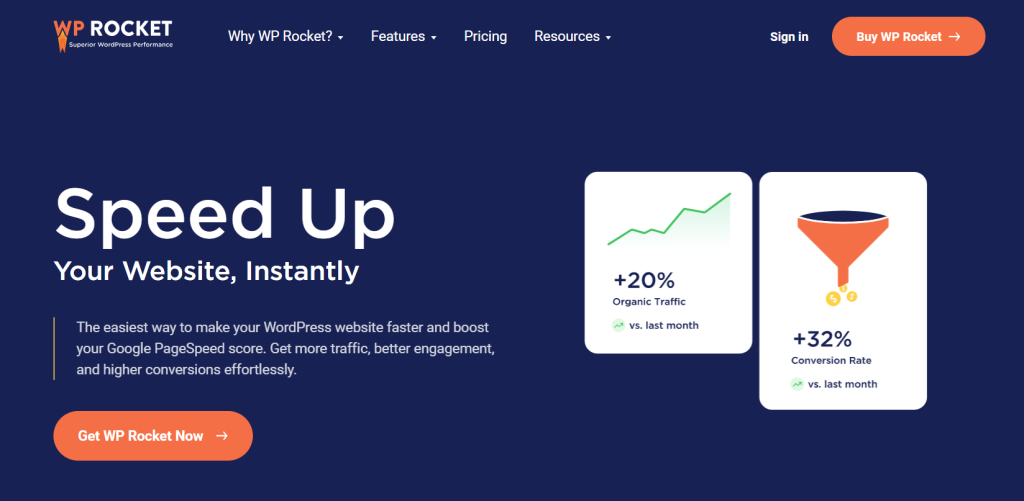
- One-click setup with advanced caching preloaded.
- Lazy load images and videos to reduce initial page load time on sites using optimized image and video plugins for WordPress.
- Preloads cache and sitemaps for immediate CWV improvement.
When you should use it
- Beginners who need a set-and-forget solution.
- WooCommerce stores require safe page caching.
- Sites where Core Web Vitals are a priority.
When you should not use it
- Hosts already provide aggressive server caching (may cause double caching).
- Users who want full manual control over object cache and database caching.
WooCommerce considerations
- Automatically excludes cart, checkout, and account pages.
- Fragment caching for logged-in users.
Risk level
- Low. Minimal conflicts with themes or plugins.
2. LiteSpeed Cache

What it does best
- Server-level cache for LiteSpeed servers.
- QUIC.cloud CDN integration.
- Advanced image optimization and object caching.
When you should use it
- Sites hosted on LiteSpeed servers.
- Users need aggressive CWV improvements.
- Medium to large WooCommerce stores (with careful configuration).
When you should not use it
- Non-LiteSpeed hosting (won’t function).
- Beginners unfamiliar with caching layers.
WooCommerce considerations
- Supports fragment caching, but manual exclusions are recommended.
Risk level
- Medium. Misconfiguration can break dynamic pages.
3. FlyingPress

What it does best
- Next-gen caching and speed optimizations.
- Built-in CDN (FlyingCDN).
- Critical CSS generation and JS deferral.
When you should use it
- Performance-focused sites with high CWV targets.
- Users are comfortable with minor plugin configuration.
- WooCommerce stores need lightweight caching.
When you should not use it
- Complete beginners seeking automated setup.
- Sites are already on full-page server cache without exclusions.
WooCommerce considerations
- Excludes checkout and cart pages automatically.
Risk level
- Low to medium. Minor setup recommended.
4. WP Super Cache

What it does best
- Simple static page caching.
- Lightweight and reliable for shared hosting.
When you should use it
- Beginner blogs or small business sites.
- Shared hosting with limited resources.
When you should not use it
- WooCommerce stores with dynamic content.
- Sites needing advanced caching strategies.
WooCommerce considerations
- Not recommended for e-commerce.
Risk level
- Low. Very stable for simple setups.
5. WP Fastest Cache

What it does best
- Combines page caching, Gzip, and browser caching.
- Easy-to-use interface for beginners.
When you should use it
- Small to medium sites on shared hosting.
- Users needing a simple plugin to speed up WordPress site without complexity.
When you should not use it
- High-traffic dynamic sites or WooCommerce stores with complex pages.
WooCommerce considerations
- Not WooCommerce-aware; avoid for carts or checkout.
Risk level
- Low. Minimal conflicts.
6. W3 Total Cache

What it does best
- Full-page, object, database, and fragment caching.
- CDN integration and minification options.
When you should use it
- Advanced users need granular control over caching layers.
- Sites with high dynamic content or custom PHP.
When you should not use it
- Beginners. Complex setup prone to errors.
- WooCommerce stores unless properly configured.
WooCommerce considerations
- Requires manual exclusion rules.
Risk level
- Medium to high if misconfigured.
7. Cache Enabler

What it does best
- Lightweight static caching.
- WebP support for images.
When you should use it
- Minimal setups or single-page sites.
- Users wanting no-frills speed improvements.
When you should not use it
- WooCommerce stores.
- High-traffic blogs needing advanced CWV improvements.
WooCommerce considerations
- Not recommended.
Risk level
- Low. Very stable.
8. WP-Optimize
What it does best
- Combines caching, database cleanup, and image optimization.
When you should use it
- All-in-one maintenance and performance plugin.
- Small to medium sites needing basic caching and cleanup.
When you should not use it
- Large dynamic sites where specialized cache layers are needed.
WooCommerce considerations
- Safe if cart/checkout pages are excluded.
Risk level
- Low to medium.
9. Autoptimize (Companion Plugin)

What it does best
- CSS/JS minification and optimization.
- Critical CSS generation.
When you should use it
- To complement a caching plugin like WP Rocket or WP Fastest Cache.
When you should not use it
- Expecting full-page caching. Not a standalone cache solution.
WooCommerce considerations
- Safe, but not a replacement for WooCommerce-aware cache plugins.
Risk level
- Low.
10. Airlift

What it does best
- Modern caching with automation.
- Focused on high-performance sites.
When you should use it
- High-performance blogs or enterprise WordPress sites.
- Users are willing to configure advanced rules.
When you should not use it
- Beginners or WooCommerce stores without fragment caching.
WooCommerce considerations
- Requires manual WooCommerce exclusions.
Risk level
- Medium. Advanced configuration needed.
Best Cache Plugin for Shared Hosting
- Recommended Plugins: WP Rocket, WP Fastest Cache, WP Super Cache
- Why: Shared hosting often has limited PHP workers and memory. Lightweight plugins with simple page caching and browser caching improve load times without overwhelming the server.
Best Cache Plugin for LiteSpeed Hosting
- Recommended Plugin: LiteSpeed Cache
- Why: Only LiteSpeed servers support server-level caching and QUIC.cloud CDN integration. This combination provides unmatched CWV improvements and page load reductions.
Best Cache Plugin for VPS and Cloud Servers
- Recommended Plugins: WP Rocket, FlyingPress, W3 Total Cache
- Why: VPS/cloud servers can handle more aggressive caching, object caching, and database caching. Advanced users can leverage these plugins for maximal Core Web Vitals gains.
Best Cache Plugin for Managed WordPress Hosting
- Recommended Plugins: WP Rocket (set-and-forget), Autoptimize as a companion
- Why: Managed hosts already include server-level caching. Installing heavy caching plugins can cause double caching issues.
Best Cache Plugin for WooCommerce Sites
Caching for WooCommerce is a high-risk, high-reward scenario. Incorrect caching can break carts, checkout flows, and logged-in user sessions. Choosing the best WooCommerce cache plugin is critical for store speed and stability.
Why WooCommerce Caching Is Risky
- Checkout, cart, and account pages must remain dynamic.
- Logged-in users require fragment caching instead of full-page caching.
- Misconfigured caching can display wrong pricing, cart totals, or user-specific content.
Cart, Checkout, and Fragment Rules
- Exclude all dynamic pages from full-page cache.
- Enable fragment caching to store reusable page sections safely.
- Lazy load images and defer JS without affecting logged-in users.
Plugins That Handle WooCommerce Correctly
- WP Rocket: Automatically excludes cart, checkout, and account pages; safe fragment caching.
- FlyingPress: Built-in WooCommerce support with critical CSS and preload optimization.
Final Verdict
Speed is a system problem, not a plugin problem. The best cache plugin for WordPress 2026 depends first on your hosting environment, second on your site type, and only then on the plugin itself.
- Hosting first: A plugin cannot fix a host that throttles PHP workers or lacks server caching.
- Store type second: WooCommerce stores require fragment caching and dynamic page exclusions. Blogs and small sites do not.
- Plugin last: Pick the plugin that matches your stack, not the one with the flashiest features.
Analyze your infrastructure. Then install the cache plugin that complements it. This is how you truly improve WordPress speed without risk.